> For the complete documentation index, see [llms.txt](https://docs.contiple.com/llms.txt). Markdown versions of documentation pages are available by appending `.md` to page URLs; this page is available as [Markdown](https://docs.contiple.com/eng/api-guide/open-api/post.md).
# Member Interlink (POST Method)
{% hint style="info" %}
**What is a member interlink?**
This feature applies your service’s member authentication to the Contiple Help Center, allowing users to submit member-only inquiries and view their submitted inquiry history.
{% endhint %}
***
## **➊ Member Interlink**
### **1-1. Overview**
* Member integration supports **two types of API methods: GET and POST**.
* **POST Method**
* This method is suitable for services provided on **web-based platforms** (PC or Mobile).
* The service must provide a **web-based login page (URL)**.
* Two implementation types are supported, as defined in the development specifications: Client-side, Server-side
* **GET Method**
* This method is suitable for services that **do not provide a web-based login page**.
* Recommended for **native application–based services** (non-web).
* To enable integration, please implement the API according to the specifications provided by Contiple and register it in the **Member Integration** settings.
***
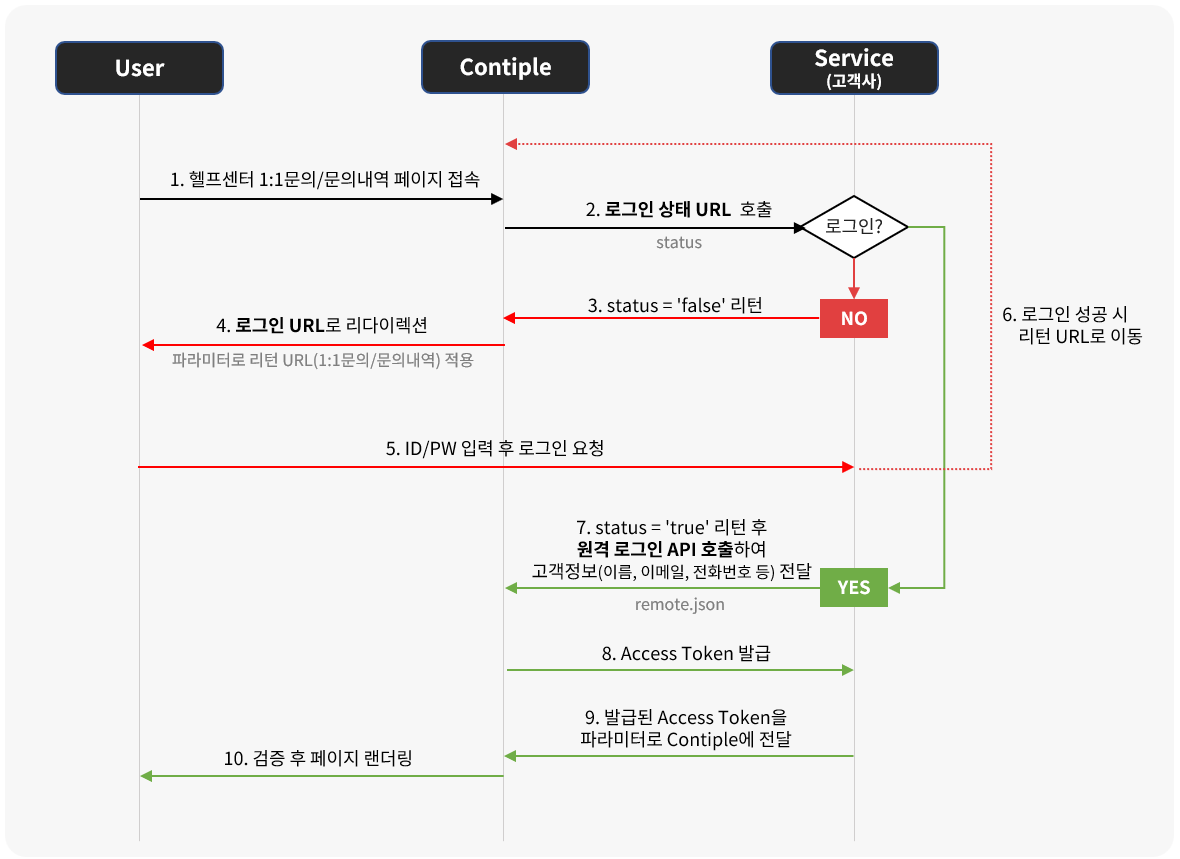
### **1-2. Process (POST Method)**
{% stepper %}
{% step %}
The user accesses the **1:1 Inquiry** or **Inquiry History** page in the Help Center.
{% endstep %}
{% step %}
If **SSO member integration** is enabled, the system calls the **Login Status URL**.
* The Login Status URL must be implemented according to the provided development guide and must return the user’s login status to Contiple.
{% endstep %}
{% step %}
If the user is **not logged in**, the API should return `status = false`.
{% endstep %}
{% step %}
In this case, the user is redirected to the **login page URL**.
* During redirection, a **`returnUrl`** parameter is automatically appended. This URL is used to redirect the user back to the original page after successful login.
{% endstep %}
{% step %}
The user enters their ID and password to log in.
{% endstep %}
{% step %}
Upon successful login, the user is redirected to the **returnUrl** provided in step 4.
* The system then returns to step 2 and calls the **Login Status URL** again.
{% endstep %}
{% step %}
If the user is authenticated, the API returns `status = true`, and the client server calls the **Remote Login API** to send customer information (such as name, email, phone number) to Contiple.
* The transmitted customer information is automatically populated in the inquiry form fields.
{% endstep %}
{% step %}
Contiple issues an **Access Token** based on the received customer information.
{% endstep %}
{% step %}
The client system redirects the user to the **1:1 Inquiry / Inquiry History** page, passing the issued Access Token as a parameter.
{% endstep %}
{% step %}
After validating the Access Token, the page is rendered for the user.
{% endstep %}
{% endstepper %}
***
### **1-3. Member Integration Setup**
{% stepper %}
{% step %}
#### Enable Member Integration
* Navigate to **\[Service Management] → \[Help Center] → \[Member Intelink]**.
* Enable the **Member Integration Activation** option to enable the feature.
{% endstep %}
{% step %}
#### Non Member Inquiry
* **Enabled**: Users can submit inquiries without logging in.
* **Disabled**: Only logged-in users are allowed to submit inquiries.
{% endstep %}
{% step %}
#### Login Type
* Select **POST** as the login method.
{% endstep %}
{% step %}
#### URL Setting
* **Login URL**:\
The URL to which users are redirected if they are not logged in after the login status check.
* **Login Status URL**:\
The URL used to verify the user’s login status when accessing the Help Center or navigating between pages.
{% endstep %}
{% step %}
#### Parameter Configuration
* You can include customer information passed to Contiple via the Remote Login API as request parameters.
* Parameters can be sent via request headers or query strings.
* The parameter names must exactly match those defined and sent by your service in the Remote Login API.
{% endstep %}
{% step %}
#### Customer Information Encryption
* Enable this option if you want to encrypt customer data (such as name, email, or phone number) before sending it to Contiple via the Remote Login API.
* When enabled, an **API Key** is generated.
* The customer data must be encrypted using this key according to the guide before transmission.
* Contiple decrypts the data using the same key to process the information securely.
{% endstep %}
{% endstepper %}
***
## **➋ Development Specification**
### **2-1. Token Generation**
{% hint style="info" %}
**Contiple Organization Key**
* You can find the organization key under:\
**\[Global Management] → \[Contract Services Status] → \[Organization Information]**
{% endhint %}
{% hint style="danger" %}
**Token Generation Rule**
* Generate the token according to the sample below.
* The **parameter order must strictly follow the sequence defined below**.
* In the example, the organization key is stored in `>Sample project > application.properties > oc.apikey=`.
{% endhint %}
```java
private String getSHA256Token(String serviceId, String usercode, String username, String email, String phone,
String returnUrl, Long time, String apiKey) throws Exception {
StringBuilder sb = new StringBuilder();
// Order by follow number:
sb.append(serviceId); // 1
sb.append("&");
sb.append(usercode); // 2
sb.append("&");
if (StringUtils.isNotBlank(username)) {
sb.append(username); // 3
sb.append("&");
}
if (StringUtils.isNotBlank(email)) {
sb.append(email); // 4
sb.append("&");
}
if (StringUtils.isNotBlank(phone)) {
sb.append(phone); // 5
sb.append("&");
}
if (StringUtils.isNotBlank(memberno)) {
sb.append(memberno); // 6
sb.append("&");
}
if (StringUtils.isNotBlank(returnUrl)) {
sb.append(returnUrl); // 7
sb.append("&");
}
sb.append(time); // 8
SecretKeySpec signingKey = new SecretKeySpec(apiKey.getBytes("UTF-8"), "HmacSHA256");
Mac mac = Mac.getInstance(signingKey.getAlgorithm());
mac.init(signingKey);
byte[] rawHmac = mac.doFinal(sb.toString().getBytes("UTF-8"));
return new String(Base64.encodeBase64(rawHmac));
}
// Sample
// Use this same input, the output is : Ah9M58CQ9RFTShjFuqziQr+0MjmJxN6+bzWxMD71moo=
public static void main(String[] args) throws Exception {
String s = getSHA256Token("hangame", "testusercode", "testUsername", "test@email.com", "123456789",
null, 1660095873001L, "7cf2828608274a49a3f06152b2188927");
System.out.println(s); // Output: Ah9M58CQ9RFTShjFuqziQr+0MjmJxN6+bzWxMD71moo=
}
```
***
### **2-2. POST Remote Login API (From Client Side)**
#### **(1) Interface Description**
* URL: https\://{domain}.oc.nhncloud.com/v2/enduser/remote.json
* URL(Development): https\://{domain}.oc.alpha-nhncloud.com/v2/enduser/remote.json
| Interface Name | Protocol | Request Format | Encoding | Respnse Format | Interface Description |
| --------------------------------------- | -------- | -------------- | -------- | -------------- | ----------------------------------------------------------------------------------------------------------------------------------------------------------------------------------------------------------------------------------------------------------------- |
| POST Remote Login API(From client side) | HTTPS | POST | UTF-8 | Redirect |
The client system dynamically generates a form and returns it to the browser. The form automatically submits the data to the API endpoint.
After receiving the form data, the API performs authentication and, upon success, sets a login cookie.
|
{% hint style="info" %}
Refer to the example class provided in the **Sample Project** for the implementation on the client side.
* FormLoginController.java
* Method: submitLogin
{% endhint %}
***
#### **(2) Request Parameter**
| Name | Field (Parameter) | Type | Required | Description |
| ------------------------------------------------------ | ----------------- | ------------ | -------- | ------------------------------------------------------------------------------------------------------------------------------------------------------------------------------------------------------------------------------------------------------------------------------------------------------------------------------------------------------------------------------------------------- |
| Service ID | service | Varchar(50) | O | Service ID |
| User ID | usercode | Varchar(50) | O | User ID (A unique identifier representing the user.) |
| User Name | username | Varchar(50) | X | User Name |
| User Email Address | email | Varchar(100) | X | User Email Address |
| User Phone Number | phone | Varchar(20) | X | User Phone Number |
| Member No. | memberno | Varchar(50) | X | Member Number |
| Timestamp (The timestamp represents the current time.) | time | Long | O | If the request time exceeds **3 minutes**, a timeout error is returned. |
| Authentication Token | token | Varchar | O | Generate the **SHA256** value using the following parameters and **the organization key**. (If an optional parameter is null or empty, it must not be included in the encryption string. Important: The order of the values in the string must exactly match the order specified in the example below.) SHA256Digest(service & usercode & username & email & phone & memberno & returnUrl & time) |
| Return URL | returnUrl | Varchar | X | Upon successful authentication, the user is redirected to the specified URL. |
***
#### **(3) Response Data**
* If a `returnUrl` parameter is provided, the user is redirected to that URL.
* If no `returnUrl` is provided, the string **`SUCCESS`** is returned.
***
### **2-3. POST Remote Login API (From Server Side)**
#### **(1) Interface Description**
* URL: https\://{domain}.oc.nhncloud.com/api/v2/enduser/remote.json
* URL(Development): https\://{domain}.oc.alpha-nhncloud.com/api/v2/enduser/remote.json
| Interface Name | Protocol | Request Format | Encoding | Response Format | Interface Description |
| --------------------------------------- | -------- | -------------- | -------- | --------------- | ----------------------------------------------------------------------------------------------------------------------- |
| POST Remote Login API(From server side) | HTTPS | POST | UTF-8 | String |
The client directly calls the API from the server. After successful authentication, a login cookie is issued.
|
{% hint style="info" %}
Refer to the example class provided in the **Sample Project** for the implementation on the client side.
* ApiLoginController.java
* Method: submitLogin
{% endhint %}
***
#### **(2) Request Parameter**
| Name | Field (Parameter) | Type | Required | Description |
| -------------------- | ----------------- | ------------ | -------- | ------------------------------------------------------------------------------------------------------------------------------------------------------------------------------------------------------------------------------------------------------------------------------------------------------------------------------------------------------------------------------------------------- |
| Service ID | service | Varchar(50) | O | Service ID |
| User ID | usercode | Varchar(50) | O | User ID (A unique identifier representing the user.) |
| User Name | username | Varchar(50) | X | User Name |
| User Email Address | email | Varchar(100) | X | User Email Address |
| User Phone Number | phone | Varchar(20) | X | User Phone Number |
| Member No. | memberno | Varchar(50) | X | Member Number |
| Timestamp | time | Long | O | If the request time exceeds **3 minutes**, a timeout error is returned. |
| Authentication Token | token | Varchar | O | Generate the **SHA256** value using the following parameters and **the organization key**. (If an optional parameter is null or empty, it must not be included in the encryption string. Important: The order of the values in the string must exactly match the order specified in the example below.) SHA256Digest(service & usercode & username & email & phone & memberno & returnUrl & time) |
***
#### **(3) Response Data**
{% hint style="info" %}
**When accessing the Help Center, pass the returned `content` value as the `accessToken` parameter in the Help Center URL.**
* Example:\
{% endhint %}
```json
{
"header": {
"resultCode": 200,
"resultMessage": "",
"isSuccessful": true
},
"result": {
"content": "xxxxxxaccessTokenxxxxxxx"
}
}
```
***
### **2-4. POST Login URL (User)**
#### **(1) Interface Description**
* URL: User-Provided
* URL(Development): User-Provided
| Interface Name | Protocl | Request Format | Encoding | Response Format |
| -------------------- | ------- | -------------- | -------- | --------------- |
| POST Login URL(User) | HTTPS | GET | UTF-8 | Redirect |
#### The service’s login system must support the following behavior:
> #### **User Login Status**
>
> 1. **User Logged Out**
> 1. Display the login page.
> 2. Allow the user to log in with ID and password.
> 3. After successful login:
> * Create a login session or cookie.
> * Store login status for future validation.
> * Send customer information to Contiple via the Remote Login API\
> (see **POST Remote Login API – Client-side / Server-side**).
> 2. **User Logged In**
> * After successful login, send customer information to Contiple(Online Contact) using the Remote Login API (Client-side or Server-side).
> #### **SSO Login Feature**
>
> 1. **When the user is logged out**
> 1. Redirect the user to the login page.
>
> 2. The user logs in.
>
> 3. Your service processes the login on the server and creates login-related cookies for the authenticated user.
>
> 4. Call the **POST Remote Login API**\
> (see **POST Remote Login API (From client side)** / **POST Remote Login API (From server side)**).
>
> * **When the user is already logged in**
> * Call the **POST Remote Login API**\
> (see **POST Remote Login API (From client side)** / **POST Remote Login API (From server side)**).
> #### **POST Remote Login API Usage**
>
> 1. **POST Remote Login (Client-side)**
> 1. Generate a login token using user information and the API Key.
>
> 2. Redirect the browser with the generated token.
>
> 3. Render a form on the page and submit it.
>
> 4. The form submits the user data to the Remote Login API.
>
> 5. Upon success, redirect to the specified `{returnUrl}`.
> 2. **POST Remote Login (From server side)**
> 1. Generate a login token using user information and the API Key.
> 2. Call the Remote Login API directly from the server.
> 3. Append required parameters (e.g., `usercode`, `time`) to the `returnUrl`.
> 4. Redirect the user to the `returnUrl`.
***
### **2-5. POST Login Status URL (User)**
#### **(1) Interface Description**
* URL: User-Provided
* URL(Development): User-Provided
> **How to configure cross-domain access**
>
> ```
> response.addHeader("Access-Control-Allow-Origin", request.getHeader("origin"));
> response.addHeader("Access-Control-Allow-Credentials", "true");
> ```
| Interface Name | Protocol | Request Format | Encoding | Response Format | Interface Description |
| --------------------------- | -------- | -------------- | -------- | --------------- | -------------------------------------------------------------------------------------------------------------------------------------------------------------------------------------------------------------------------------------------------------------- |
| POST Login Status URL(User) | HTTPS | GET | UTF-8 | JSON |
The service checks the user’s login status based on cookie information and returns the result in JSON format. Your service server must allow cross-domain access in the response (CORS configuration is required).
|
{% hint style="info" %}
Refer to the example class provided in the **Sample Project** for the implementation on the client side.
* FormLoginController.java
* Method: loginStatus
{% endhint %}
***
#### **(2) Request Parameter**
* 없음
***
#### **(3) Response Data**
Name
Field (Parameter)
Type
Required
Description
javascript function
login
Boolean
O
Login Status. Login: true, Logout: false
User ID
usercode
Varchar(50)
X
User ID (unique value). Required when login status is true.
***
#### **(4) Response Body**
```json
{
"login": "true",
"usercode":"usercodeXXX"
}
{
"login": "false",
"usercode": null
}
```
***
## **➌ Example Usage**
### **3-1. Sample Code**
* Sample Code Download
{% file src="/files/gWqFhWiw9632kBvXmc1m" %}
***
### **3-2. iframe Usage**
**(1) Embed the Contiple Help Center in your page using an iframe**
* Refer to `oc_sso_sample/src/main/resources/templates/help_frame.ftl` in the Sample Code files.
* The iframe **must** have `id="ocPage"`.
```
```
* If you configure the page viewport, the Help Center can be used on both mobile and web browsers.
```
```
***
**(2) Adjust the iframe height by reading the Contiple Help Center height from the parent page**
* Refer to the JavaScript code in `help_frame.ftl`.
```javascript
// Listener for OC content height change
window.addEventListener('message',function(event){
// Set iframe height
if(event.data > 0) {
updateHeight(event.data);
}
});
var updateHeight = function(wrapHeight) {
var iframe = window.document.getElementById('ocPage');
if(iframe != null) {
iframe.style.height = '0px';
var setHeight = (document.body.clientHeight > document.body.scrollHeight) ? document.body.clientHeight : document.body.scrollHeight;
var margin = 70;
setHeight = setHeight > wrapHeight ? setHeight : wrapHeight;
iframe.style.height = setHeight + margin + "px";
}
};
```
***
**(3) Retrieve cookies from the user page after login (cookies required by your system)**
* Refer to the JavaScript code in `help_frame.ftl`.
```javascript
// get cookie
function getCookie(name) {
var arr,reg=new RegExp("(^| )"+name+"=([^;]*)(;|$)");
if(arr=document.cookie.match(reg))
return unescape(arr[2]);
else
return null;
}
$.when( $.ready ).then(function() {
var ssotoken = getCookie("sso_test_login");
var usercode = getCookie("usercode");
if(ssotoken != null && usercode != null) {
var signout = $("#signout");
$("#signout").html("Welcome " + usercode + "! Sign out");
$("#signout").show();
$("#signin").hide();
}
});
```