> For the complete documentation index, see [llms.txt](https://docs.contiple.com/llms.txt). Markdown versions of documentation pages are available by appending `.md` to page URLs; this page is available as [Markdown](https://docs.contiple.com/eng/try-it-out/global-management.md).
# Global Management
Provides organization-wide configuration features for managing all settings related to the use of Contiple.
***
## **➊ Contract Service Status**
{% hint style="info" %}
Allows you to view and manage the **services currently in use** within the organization, check **billing details**, and review **organization information**.
{% endhint %}
### **1-1. Contract Status**
#### **① Add Service**
* To add a new service to the organization, click the **Add Service** button.
* For detailed instructions, refer to the **Add Service** section in the *Consultation Management Tutorial.*
#### **② Basic Information**
* Click **Edit** to modify the basic information of the registered service.
#### **③** Contract
* After adding a service, uncontracted services are displayed as **Register**, while completed contracts are displayed as **Edit**.
* Click **Register** or **Edit** to continue or update the contract details.
* Contract information can be modified **once per day****.**
#### **④** Status
* Use the **toggle button** to enable or disable the service.
* Disabled services cannot be used, and **billing continues** at the same rate.
#### **⑤** Termination
* To terminate a service, first disable it using the **Status toggle button**.
* Once disabled, the **Delete** button becomes active. Click **Delete** to complete the service termination process.
***
### **1-2. Rate Status**
{% hint style="info" %}
**FAQ 바로 가기**
[과금 기준은 어떻게 되나요?](https://nhn-contact.oc.nhncloud.com/oc/hc/article/99/)
[요금은 언제 어떻게 결제 되나요?](https://nhn-contact.oc.nhncloud.com/oc/hc/article/67/)
{% endhint %}
* This menu allows you to **search and view monthly billing charges** for each service.
* When viewing an individual service, you can also **check its current status**.
***
### **1-3. Organization Information**
* You can view the **NHN Cloud organization information** linked to your Contiple account,\
as well as the **Contiple organization information** used to manage internal contract services.
***
## **➋ Organization Administrator**
{% hint style="danger" %}
**Permissions and Requirements**
* Users with **Organization Administrator** permissions **cannot access consultation or service management features**.
* If you need consultation permissions or need to complete the initial service setup, go to **Service Management → Agents** and add a **Manager** or **Agent**.
{% endhint %}
{% hint style="info" %}
**Go to FAQ**
[권한의 종류와 차이점을 알고 싶습니다.](https://nhn-contact.oc.nhncloud.com/oc/hc/article/36/)
{% endhint %}
#### **① Invite Members**
(*This process can also be done through the NHN Cloud Console.)*
* You can invite users who are **not yet registered as IAM members** using the **Invite Member** feature.
* Enter the **name**, **ID**, and **email address** of the user to invite, then click **Confirm**.
* An **invitation email** will be sent to the entered address, and once the recipient sets a password through the email, they will be registered as an **IAM member**.
#### **② Add Organization Administrator**
* Click the **Add Organization Administrator** button, then **search for an agent** to select the account you want to add as an **Organization Administrator**.
***
## **➌ Company Information Management**
{% hint style="info" %}
This menu allows you to **manage company information displayed in the footer area** of the **PC and mobile Help Center**.
{% endhint %}
* Click the **Add** button, then enter the **company information**, **trademark or copyright details**, and **terms of service**, and click **Save**.
* The saved company information can be applied in **Service Management → Help Center → Default Settings**.
***
## **➍ CTI Management**
{% hint style="info" %}
This menu allows you to **configure CTI information** connected to **Contiple** and set each agent’s **CTI ID** and **CTI number**.
{% endhint %}
{% hint style="danger" %}
**Permissions and Requirements**
1. Only services that have **Contract Details → Use CTI Phone IB, OB** set to **“Enabled”** under **Contract Details** can access this menu.
2. This menu is **not displayed** in the **Global Management** section of **Issue Management** services.
{% endhint %}
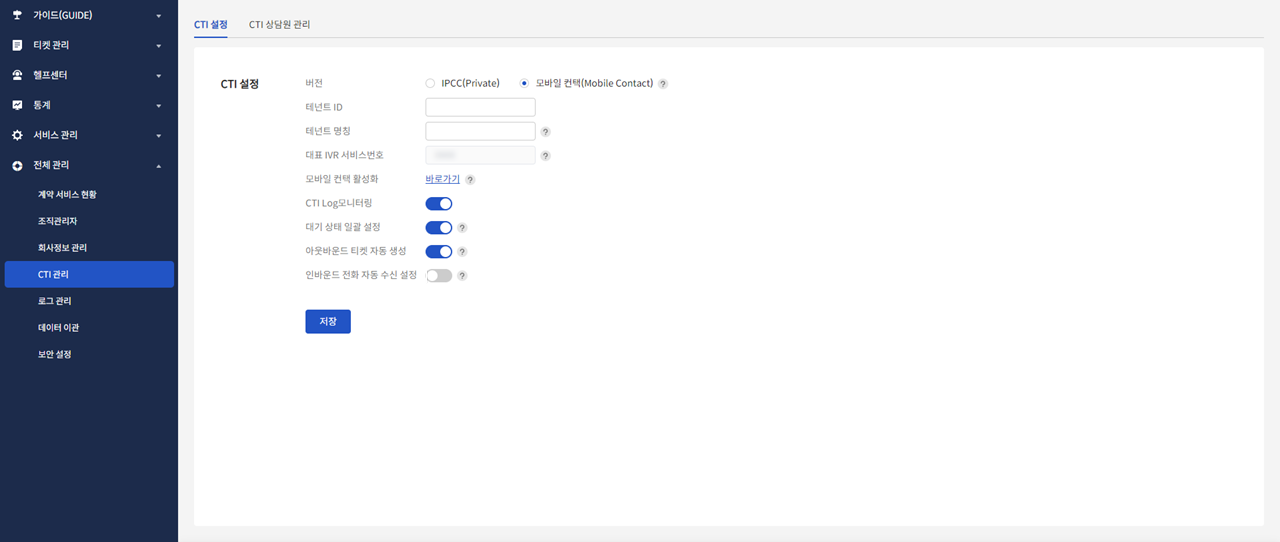
### **4-1. CTI Setting**
> #### 🔍 CTI Setting Field Description
>
> * Version : Select the CTI version to use.
> * IPCC(Private) : Requires prior consultation with the **Contiple Customer Center** before use.
> * Mobile Contact : Requires activating the **Mobile Contact** service in the **NHN Cloud Console** before use.
> * Tenant ID : The Tenant ID provided by the **IPCC** or **Mobile Contact** administrator.
> * Tenant Name : The service name provided by the **IPCC** or **Mobile Contact** administrator.
> * Main IVR Service Code : The IVR service number that provides the main scenario.
> * Mobile Contact Active : Enables phone consultation services through mobile or PC applications (can be linked with **Contiple**).
> * CTI Log Monitoring : When enabled, CTI logs are recorded **daily** and can be viewed under **My Account → CTI Log Download**.
> * Batch Set to Ready Status : Controls the agent status after a call ends.
> * Enabled : Automatically changes the agent’s status to **Working (Ticket Processing)** after the call ends.
> * Disabled : Displays a status change prompt, allowing agents to update their status manually.
> * Automatic Outbound Ticket Creation : Determines when tickets are created for outbound calls.
> * Enabled : Automatically changes the agent’s status to **Working (Ticket Processing)** after the call ends.
> * Disabled : Displays a status change prompt, allowing agents to update their status manually.
> * Automatic Inbound Call Reception : Controls whether incoming calls are automatically received.
> * Enabled : Automatically answers incoming calls within **10 seconds** of ringing (excluding call transfers).
> * Disabled : Agents must click the **Answer** button to receive the call manually.
***
### **4-2. CTI Agent Management**
#### **① Search**
* Search for the **agent** to register CTI information. (Only agents who have been granted **phone permissions** in one or more services can be found.)
#### **② CTI ID/CTI No.**
* Click **Edit** to activate the input fields, then enter the agent’s **CTI ID** and **CTI No.**
* After entering or updating the CTI information, click **Save** to apply the changes.\
*(CTI information cannot be duplicated between agents.)*
#### **③ Call Widget**
* Once the CTI information is correctly entered, the agent can log in to CTI using the **Call Widget** at the bottom right corner of the screen.
***
## **➎ Log Management**
### **5-1. Authority Log Management**
{% hint style="info" %}
This menu allows you to **view the history of permission edits or changes** made for **agents within the organization**.
{% endhint %}
***
### **5-2. Data Extraction Log**
{% hint style="info" %}
This menu allows you to **view the history of extracted and downloaded data**.
{% endhint %}
***
### **5-3. Handling Personal Information Log**
{% hint style="info" %}
This menu allows you to **view the history of granting or revoking permissions** related to **personal information handling**.
{% endhint %}
***
## **➏ Data Transfer**
### **6-1. Data Transfer**
{% hint style="info" %}
This menu is used to **transfer existing consultation data** into **Contiple**.
{% endhint %}
#### **① Add**
* Click the **Add** button to begin preparing for **data transfer**.
#### **②** Download Template
* After selecting the service for which the data will be transferred, click **Download** to obtain the **template file**.
* The template is provided in **Excel format** and reflects the **current field configuration** of the selected service.
* Once the upload file is ready, click **Next** to proceed.
#### **③ Register Data**
* Click the **Add** button to upload the completed Excel file.
* Click **Save** to review the data registration guidelines, then click **Confirm** to finalize the Excel file registration.
{% hint style="warning" %}
Uploaded data is marked as **Pending** and will be automatically applied at **1:00 AM the following day**.
{% endhint %}
#### **④ Delete**
* Data in **Pending** status can be deleted by clicking the **Delete** button.
* However, once the transfer is completed, the button becomes **disabled** and deletion is no longer possible.
***
## **➐ Security Setting**
### **7-1. Handling Personal Information**
{% hint style="info" %}
This permission allows users to **exceptionally unmask and extract data** from fields that are **normally stored in a masked (encrypted) state**.
{% endhint %}
* Click the **Add Permission** button to open the dialog box for granting **personal information handling permissions**.
* Enter the **account**, **email**, and **IP information** of the user to grant the permission to, then click **Confirm** to save.
* You can also click **Edit** or **Delete** to modify or remove existing permissions.