> For the complete documentation index, see [llms.txt](https://docs.contiple.com/llms.txt). Markdown versions of documentation pages are available by appending `.md` to page URLs; this page is available as [Markdown](https://docs.contiple.com/eng/try-it-out/cm/customer-info-management.md).
# Customer Info Management
You can manage received customer information or integrate customer data from external systems via API.
{% hint style="danger" %}
**Permissions and Requirements**
1. In the contract details of the currently connected service, set the **\[Customer Information Management]** feature to **Enabled**.
2. Only agents with **administrator permissions** can use this menu.
{% endhint %}
***
## **➊ Customer Management**
### **1-1. Customer Management**
{% hint style="info" %}
This menu allows you to view created customer information and related records.
{% endhint %}
#### **① Customer List**
* You can view customer information records created in **Contiple**.
* Customer information is automatically generated based on consultation details received through various channels such as the Help Center inquiry form or Call.
* For inquiries received via the call channel, if the **same phone number** exists, the information is automatically merged under that customer record.
* For inquiries received through other channels, the information is automatically merged based on the **email address**.
* For new customers, a unique customer ID is automatically issued, and a new customer record is created.
#### **② Edit/Merge Customer Information**
* Click the **Open in New Window** icon to view tickets that require customer information updates, then edit the fields in the ticket details section.
* If the latest customer information such as ID, name, or phone number exists for the same customer ID, you can select it from the dropdown list.
* When new customer information is entered, it is saved together and can be viewed in the **Customer Management** menu.
* When separate customer records refer to the same individual, you can use the **Merge** feature to combine them.
***
### **1-2. Customer Category**
{% hint style="info" %}
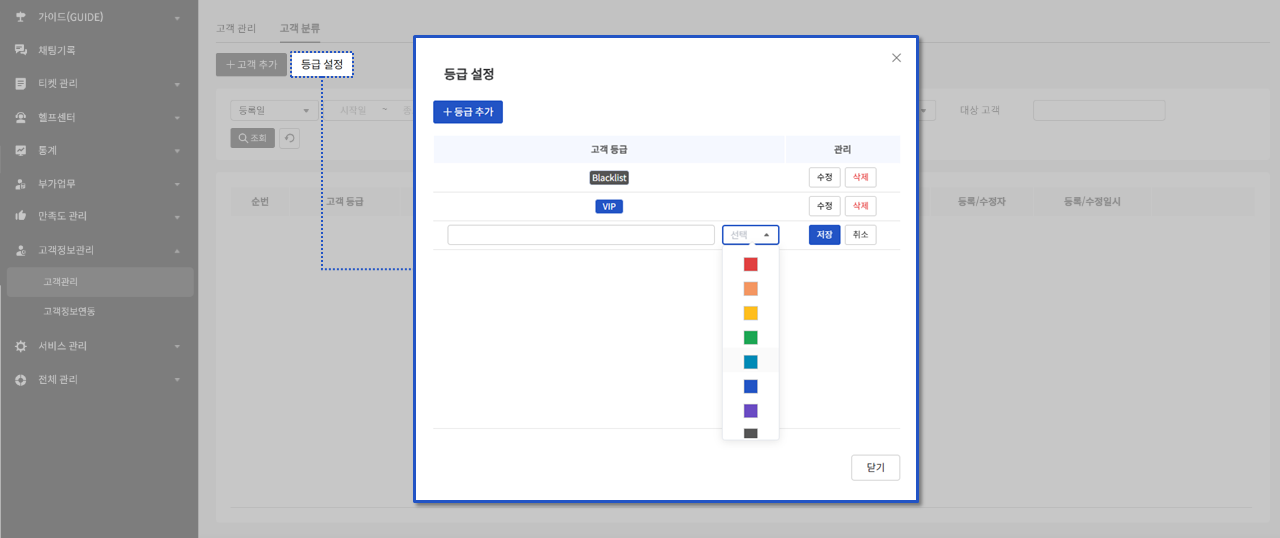
* You can assign specific **level** to customers based on identifiable data such as phone number or email.
* Assigned tags are displayed at the top of the ticket processing history as labels.
{% endhint %}
#### **① Level Setting**
* Click the **Level Setting** button, specify the grade name and color, then click **Save** to complete the grade creation.
#### **② Customer Add**
* Click the **Add Customer** button, select the customer classification criteria (such as email, phone number, or member ID), and enter the customer information.
* Select a customer grade created under **\[Level Setting]**.
* Enter the details, then click **Save** to complete adding the customer.
***
## **➋ Customer Info Contact**
### **2-1. API Setting**
{% hint style="info" %}
This menu allows you to configure API settings to retrieve data from your own service when using a system other than **Contiple**.
{% endhint %}
{% hint style="danger" %}
**Permissons and Requirements**
* Enable **OPEN API** under **\[Service Management] → \[Authentication] → \[OPEN API]**.
{% endhint %}
#### **(1) Add API**
> **Field Description**
>
> * API Name : Name of the API to be added.
> * Base URL : The URL used to call the API.
> * Encryption : Whether to enable encryption for messages transmitted via the API.
> * Encryption Key : Automatically generated when encryption is set to “Yes.”
> * Contiple Server Information : Opens the firewall to allow Contiple to access the service providing the API.
> * Click the **Search** button to select recipients and send the IP information via email.
> * Search Items : Configure query parameters used for the API call
> * Division
> * Add using **Add** button: *General*
> * Add using **Add Ticket Field** button: *Ticket Field*
> * Type : (For general items) Choose either *Text Box* or *Dropdown Box*.
> * Required : Set whether the parameter is mandatory for the API call.
> * Screen Name : Name displayed for the search item in the Ticket Management screen.
> * Variable Name : Parameter code.
> * Data Length : Maximum input length for the parameter.
> * Result Items : Configure how API return data is displayed in the Contiple interface.
> * Screen Name : Name displayed for the result item in the Ticket Management screen.
> * Variable Name : Key used to identify the returned value from the API response.
#### **(2) Check Customer Information**
* APIs added in the **API Settings** can be used within the Ticket Management menu.
* Click the **Information Search** button during a customer consultation to call the API and retrieve external data.
* Enter the search parameters defined in the API Settings, then click the **Search** button.
* The returned values will be displayed below the button.
* If ticket fields such as ID, phone number, email, or name are included in the search parameters, tickets matching those conditions will also appear in the results. (Default search period: 3 months)
* When a ticket is selected, you can view the customer information from the sidebar menu.
***
### **2-2. Connect Field**
* The API query results can be automatically applied to ticket fields.
* However, automatic application is not possible if the field already contains a value.
* Only **Text Box** and **Text Area** field types can be linked.