> For the complete documentation index, see [llms.txt](https://docs.contiple.com/llms.txt). Markdown versions of documentation pages are available by appending `.md` to page URLs; this page is available as [Markdown](https://docs.contiple.com/eng/try-it-out/cm/report.md).
# Report
Contiple collects statistical data from consultation intake to resolution and provides various reports and analytics to help improve customer service quality.
***
## **➊ Period Statistics**
### **1-1. Ticket**
{% hint style="info" %}
Provides a comprehensive dashboard with graphs showing the number of tickets processed by criteria, total processing time by criteria, and performance statistics by period.
{% endhint %}
#### **① Daily Processed Cases/Daily Total Processing Time**
* View the number of processed tickets and total processing time by criteria based on the selected conditions.
* The counts and times are aggregated only for **Resolved** and **Pending** tickets. (Tickets marked as **Resolved Internally** are excluded from aggregation.)
#### **② Comprehensive performance statistics by period**
{% hint style="danger" %}
ickets marked as **Resolve Internally** — including spam, abusive content, or test cases — are excluded from aggregation.
{% endhint %}
> **Field Description**
>
> * **Submitted Cases**: Number of tickets received.
> * **Processed Cases – Total**: Number of tickets processed.
> * **Processed Cases – Resolved**: Number of tickets resolved.
> * **Processed Cases – Pending**: Number of tickets placed on hold.
> * **Processed Cases – Others**: Number of tickets internally resolved.
> * **Processing Time (Total)**: Total processing time (Resolved + Pending + Internal).
> * **Processing Time (Resolved + Pending)**: Total processing time for resolved and pending tickets.
> * **Call – In**: Number of tickets created from inbound calls.
> * **Call – Out**: Number of tickets created from outbound calls.
> * **Call – Total (In)**: Total inbound call duration.
> * **Call – Total (Out)**: Total outbound call duration.
> * **Complete Cases**: Number of tickets marked as completed.
> * **Average Completion Time**: Average time from initial submission to final completion.
***
### **1-2. Chat**
{% hint style="info" %}
Provides a comprehensive dashboard displaying chat consultation metrics, including the number of received and processed chats, processing and waiting times, and performance statistics by period.
{% endhint %}
{% hint style="info" %}
* **(Chat Consultation) Give Up** : Occurs when an agent does not click on or respond to a customer’s chat request in the waiting list.
* **(Chat Consultation) Processing** : Occurs when an agent clicks on a customer’s chat request in the waiting list and sends a response.
{% endhint %}
#### **① Reception and processing/Processing and waiting time**
* You can view the number of received and processed chat consultations, along with processing and waiting times, based on the selected conditions.
#### **② Comprehensive performance statistics by period**
> **Field Description**
>
> * **Incoming**: Number of chat sessions started when customers click **Start Chat** in the chat widget.
> * **Reception**: Number of chats where customers actually submitted an inquiry to an agent after starting the session.
> * **Give Up**: Number of chat requests that agents did not respond to.
> * **Processing**: Number of chat requests that agents responded to.
> * **Created Ticket**: Number of chat consultations converted into tickets.
> * **Total Waiting Time**: Total waiting time (from the customer’s first inquiry submission to the agent’s first response).
> * **Total Processing Time**: Total processing time (from the customer’s first inquiry submission to the agent’s chat end).
> * **Average Processing Time**: Average duration of chat processing.
***
## **➋ Type Statistics**
### **2-1. Ticket**
{% hint style="info" %}
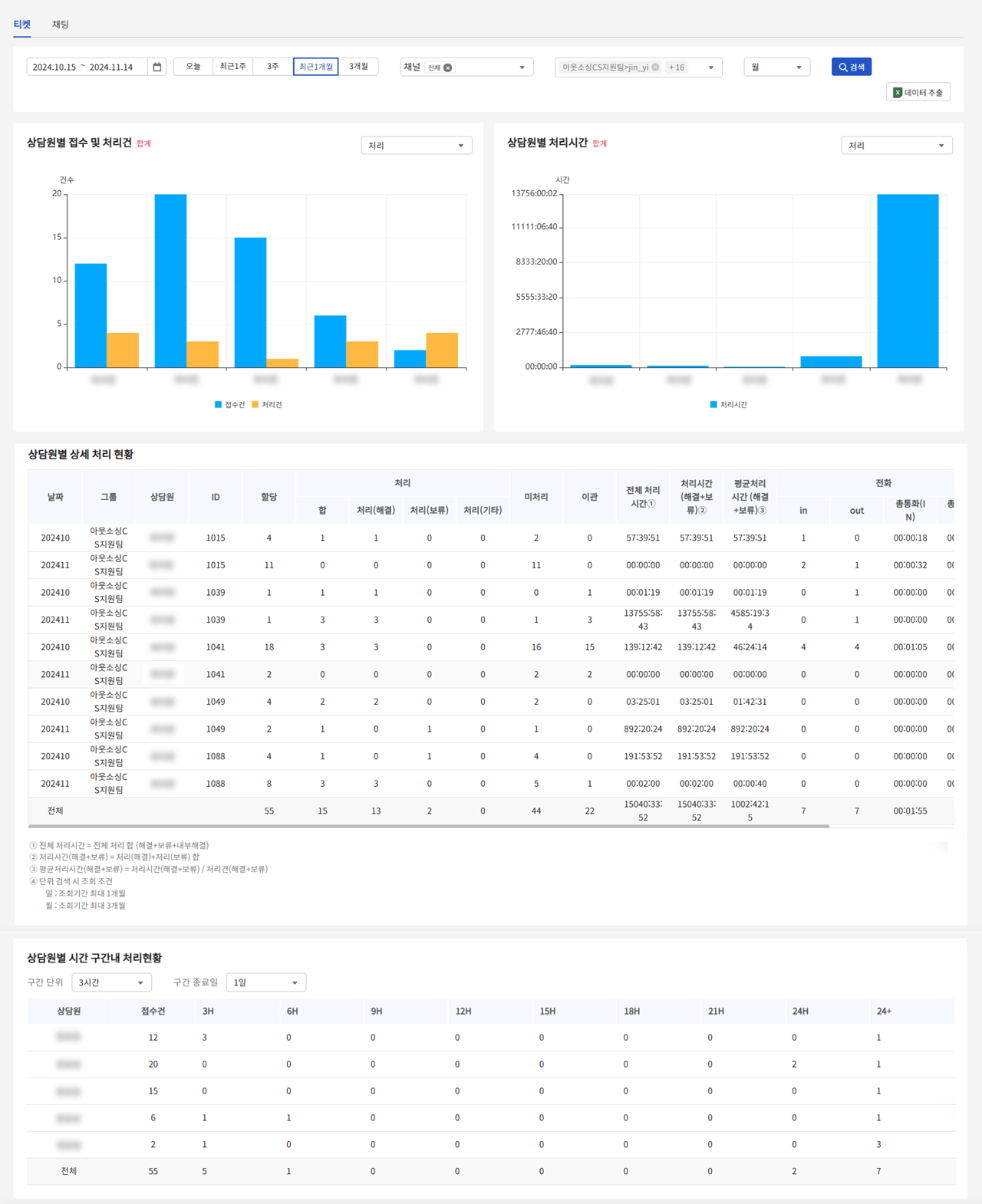
Provides a dashboard displaying ticket metrics by **reception type** and **processing type**, including graphs for received and processed cases, processing time, detailed status by type, and processing activity within specific time intervals.
{% endhint %}
#### **① Submission & Processing Case by Submission type/Processing time by Submission type**
* You can view the number of received and processed tickets, as well as processing times by reception type, based on the selected conditions.
* The counts and processing times are aggregated only for **Resolved** and **Pending** tickets. (**Internal Resolution** tickets are excluded from aggregation.)
#### **② Detailed processing status by submission type**
> **Field Description**
>
> * **Submitted Cases**: Number of tickets received.
> * **Processed Cases – Sum**: Total number of tickets processed.
> * **Processed Cases – Resolved**: Number of tickets resolved.
> * **Processed Cases – Pending**: Number of tickets placed on hold.
> * **Processed Cases – Others**: Number of tickets internally resolved.
> * **Processing Time (Resolved + Pending)**: Total processing time for resolved and pending tickets.
> * **Call – In**: Number of tickets created from inbound calls.
> * **Call – Out**: Number of tickets created from outbound calls.
> * **Call Time (In)**: Total inbound call duration.
> * **Call Time (Out)**: Total outbound call duration.
> * **Complete Cases**: Number of tickets marked as completed.
> * **Complete Time**: Total completion time (from initial submission to final completion).
#### **③** Processing status in time interval by submission type
* Displays the processing status by reception type within each time interval, based on the selected time unit and end date.
{% hint style="info" %}
**Go to FAQ**
[통계에서 시간 구간 내 처리 현황은 어떤 통계인가요?](https://nhn-contact.oc.nhncloud.com/oc/hc/article/55/)
{% endhint %}
***
### **2-2. Chat**
{% hint style="info" %}
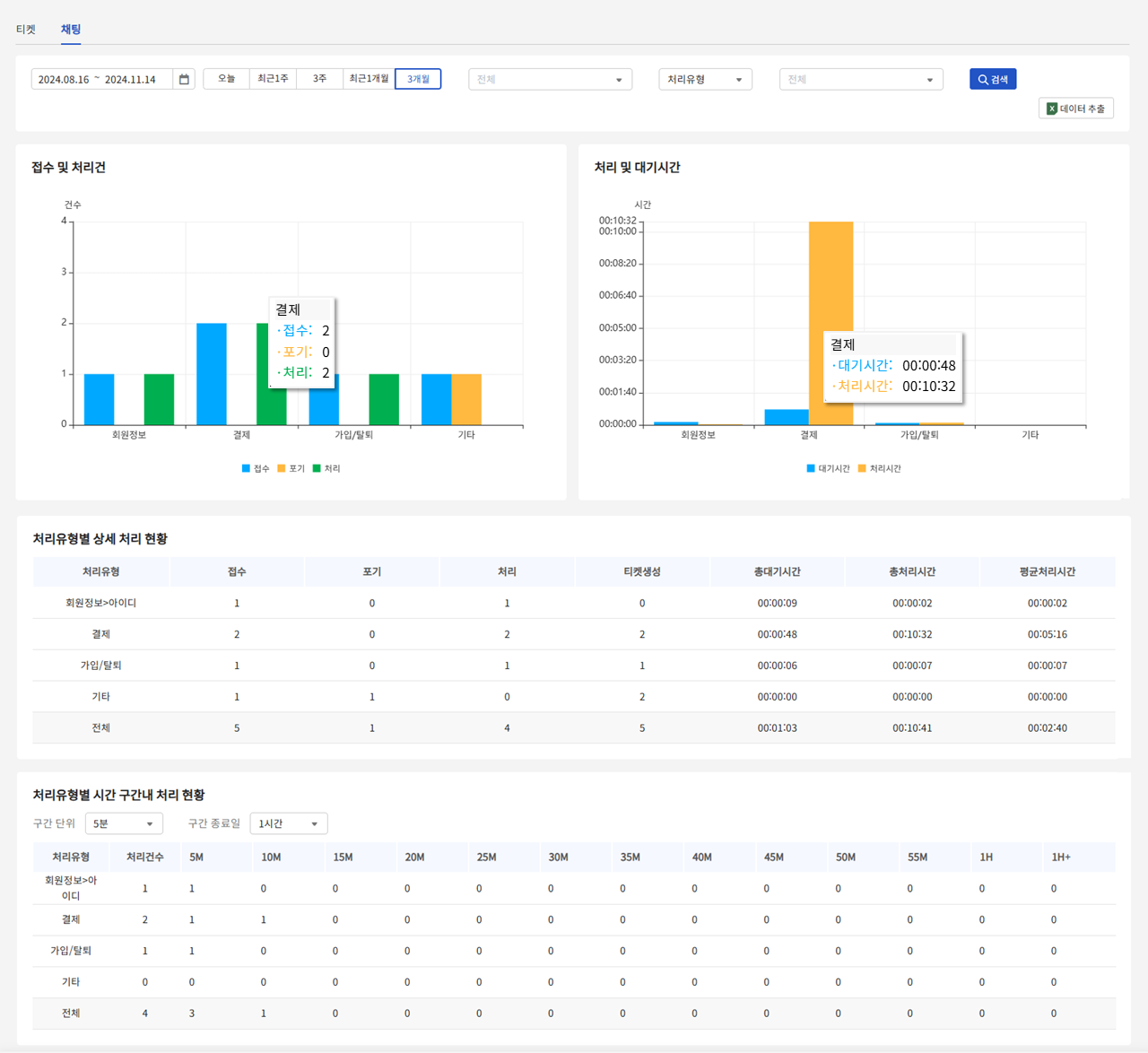
Provides a dashboard for **chat consultations** showing processing metrics by **processing type**, including the number of received and processed cases, processing and waiting time graphs, detailed processing status, and time-interval performance.
{% endhint %}
**① o/처리 및 대기시간 그래프**
* 설정한 조건에 따라 처리유형별 접수 및 처리 건, 처리 및 대기시간을 조회할 수 있습니다.
**② 처리유형별 상세 처리 현황**
* 설정한 조건에 따른 상담원별 상세 처리 현황 표입니다.
**③ 처리유형별 시간 구간 내 처리 현황**
* 설정한 조건에 따른 유형별 시간 구간 내 처리 현황 표입니다.
***
## **➌ Perforamance Statistics**
This page provides **agent performance statistics** for both **tickets** and **chat consultations**.\
You can view statistical data by setting filters such as **date range**, **channel**, and **view type** (by **Group** or **Agent**).
### **3-1. Ticket**
{% hint style="info" %}
It displays each agent’s **ticket intake and resolution counts**, **average handling time graphs**, **status breakdowns**, and **time-based performance tables**.
{% endhint %}
#### **①** Received and Processed Cases / Processing Time by Agent
* View the number of received and processed cases, as well as processing time by agent, based on the selected conditions.
* Only **Resolved** and **Pending** tickets are included in the count. (**Resolved Internally** are excluded.)\
Hover over the data points to see detailed figures for each category.
#### **②** Detailed Processing Status by Agent
* This table shows the **detailed processing status by agent** based on the selected conditions.
* Tickets marked as **Internal Resolution**, such as **spam**, **abusive language**, or **test cases**, are excluded from the statistics.
> **Field Description**
>
> * **Assign**: Number of tickets **assigned** to the agent
> * **Processed - Sum**: Total number of **processed** tickets
> * **Processed - Processed (Resolved)**: Number of **resolved** tickets
> * **Processed - Processed (Pending)**: Number of **pending** tickets
> * **Processed - Processed (Other)**: Number of **resolved internally** tickets
> * **Unresolved**: Number of **assigned tickets** that are **not resolved, completed, or pending**
> * **Escalated**: Number of **escalated** tickets
> * **Processing Time**: Total **processing time** (Resolved + Pending + Resolved Internally)
> * **Processing Time (Resolved+Pending)**: Total processing time for **resolved and pending** tickets
> * **Statistics Common Average**: **Average processing time** for resolved and pending tickets
> * **Call - In**: Number of tickets created from **inbound calls**
> * **Call - Out**: Number of tickets created from **outbound calls**
> * **Call - Call Time (In)**: Total **inbound call duration**
> * **Call - Call Time (Out)**: Total **outbound call duration**
> * **Complete Cases**: Number of **completed** tickets
> * **Average Completion Time**: **Average time to completion** (from initial receipt to final completion)
#### **③** Processing Status by Agent within Time Interval
* This section shows the **agent’s processing status** within each **time interval**, based on the selected interval unit and end date.
***
### **3-2. Chat**
{% hint style="info" %}
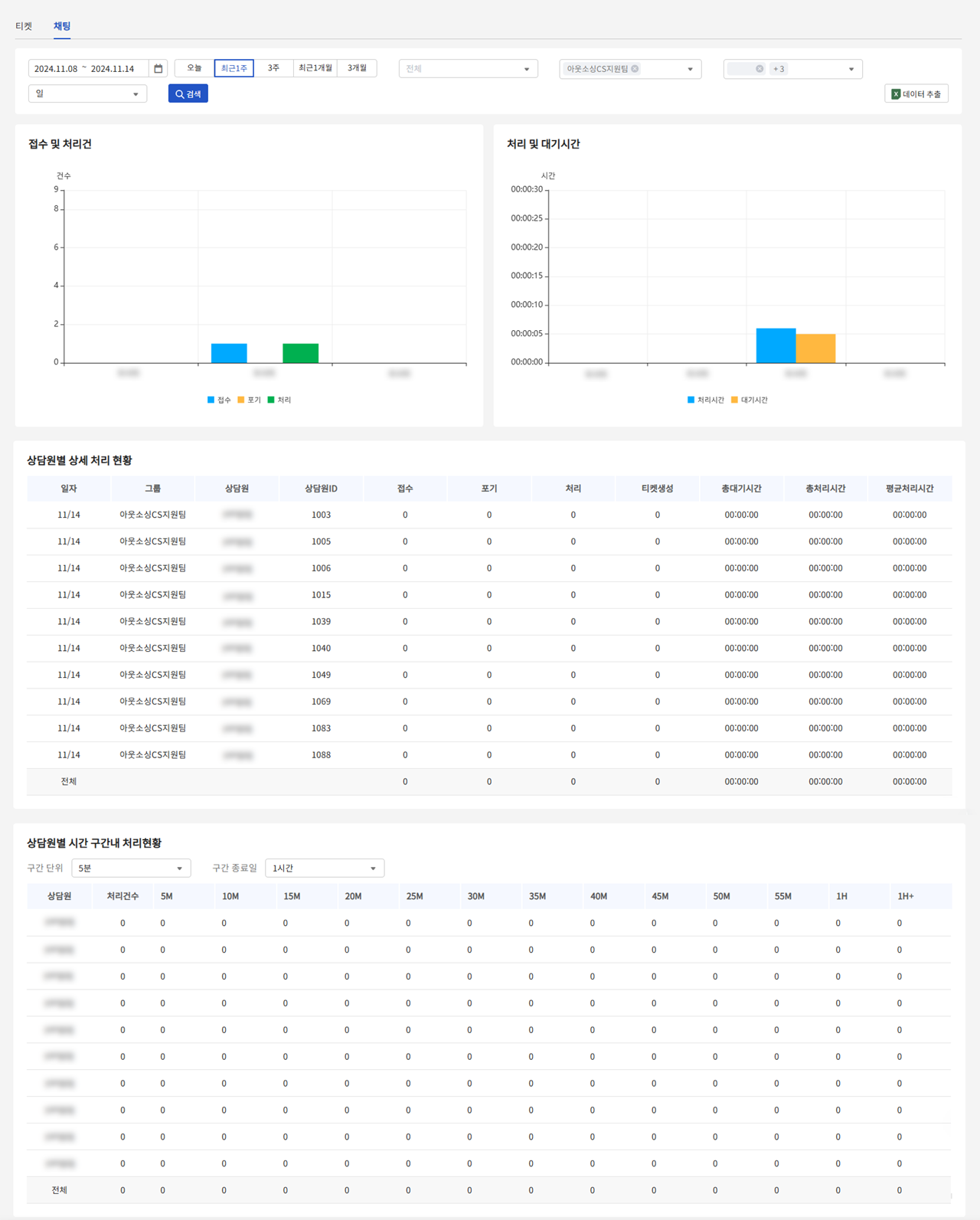
You can view **chat consultation statistics by agent**, including received and processed cases, processing and waiting times, detailed processing status, and time-interval performance.
{% endhint %}
#### **①** Reception and processing/Processing and waiting time
* View the number of received and processed chat consultations, as well as processing and waiting times, based on the selected conditions.
#### **②** Processing details by Agent
* Check each agent’s detailed processing status according to the selected conditions.
#### **③** Processing details by Agent & Time interval
* View each agent’s processing status within time intervals based on the selected conditions.
***
## **➍ Ticket Detail History**
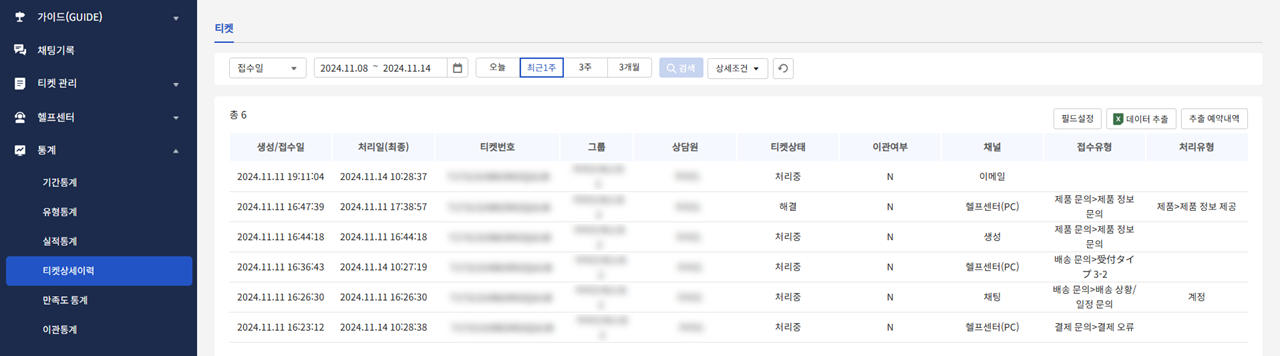
This menu allows you to **view and export ticket intake and processing history**.
***
## **➎ Transfer Statistics**
This menu allows you to view **the number of issue transfer tickets**, **Dooray! transfers**, and their **average response times**.
#### **①** Issue Transfer Status
* A graph showing the number of tickets currently under transfer and those with completed responses.
* Tickets that were **retrieved** or **returned** are excluded from the statistics.
* Hover over the data points to view detailed figures for each category.
#### **②** Average Transfer Answer Time
* A graph displaying the **average time** taken to complete a response after a ticket has been transferred.
* Hover over the data points to see the corresponding values.
#### **③** Issue Transfer Details
* A table showing **detailed information** on all issue transfer activities.
***
## **➏ C**onsultation Report (Beta)
This feature provides a streamlined interface for composing reports, with support for printing and PDF export.
{% hint style="info" %}
**Please Note**
This feature is currently available as a beta version. Functionality is subject to change at any time, and may be transitioned to a paid feature in accordance with future service policies.
{% endhint %}
### 6-1. Report List
* The Report List displays all reports that have been created to date.
* Selecting a report from the list will display its details in the panel on the right.
* **Main Buttons**
* **Create Report** — Opens the report composition screen where a new report can be created.
* **Manage Templates** — Opens a dialog box for adding, editing, and deleting report templates.
* **Detail Buttons**
* **Edit** — Opens the editing screen for the selected report.
* **New Window** — Opens the report content in a separate window for a larger view.
* **More Options (...)**
* **Print / PDF** — Launches the print function. To save the report as a PDF, select **Save as PDF** from the printer list.
* **Duplicate** — Opens the report composition screen with the contents of the selected report pre-populated in the body.
* **Delete** — Permanently deletes the selected report.
### 6-2. Create Report
* **Report Templates :** Displays all templates registered under Manage Templates. Selecting a template instantly applies its contents to the report body, allowing for efficient report creation.
* **Report Title** : The title entered here will be displayed in the Report List.
* **Body Composition**
* With the cursor placed in the body area, type **/** (forward slash) to display a list of available content items.
* Click an item (or press Enter) to insert it.
* Combine items such as text, tables, and images to complete your report.
{% hint style="info" %}
**Tip: Data Tables**
* Selecting the Data Table item allows you to incorporate actual consultation data into your report.
* Choose the desired dataset, configure the aggregation criteria and filter conditions, then click Confirm to generate the data as a formatted table.
* The generated table supports further editing, including adding or removing columns and modifying values.
* Additional datasets — such as ticket counts and processing histories — will be made available on a rolling basis.
{% endhint %}
* **Saving**
* Once the report content has been composed, click **Save** to finalize and create the report.
### 6-3. Report Templates
* Report templates allow you to manage standardized report formats for more efficient report creation.
* Clicking **Add Template** opens the same interface as the report composition screen.
* After composing the content and saving, the template will be created and will appear in the template list on the report composition screen, where it can be readily applied to the report body.
{% hint style="info" %}
**Tip: Substitution Codes**
When composing a template, substitution codes can be used to automatically populate date information based on the date and time the report is generated.
In the editing screen, type **\[** (opening bracket) to display a list of date-related items such as year, month, and day.
Selecting an item inserts the corresponding code, which will be replaced with the actual date at the time of report generation.
{% endhint %}
{% hint style="info" %}
**Tip: Data Tables in Templates**
When adding a Data Table to a template, please pay careful attention to the date range settings.
Since data is retrieved relative to the time of report creation or automated generation, it is recommended to use dynamic date options such as **Yesterday** or **Last Week** rather than fixed dates.
{% endhint %}
### 6-4. Report Automation
* Clicking the **calendar icon** within Manage Templates opens the automation settings panel.
* Enabling the toggle switch to **Active** allows reports to be automatically generated according to a configured schedule.
* **Generation Schedule / Generation Time** — Select the schedule on which the report should be automatically generated.
* **Report Reference Date**
* This is the baseline date applied to Data Tables and substitution codes. Select the appropriate reference date relative to when the report is generated according to the configured schedule.
For example, if a report is generated on **May 4, 2026**:
| Reference Date Option | Applied Date |
| ------------------------------------- | ------------ |
| Generation Date | 2026.05.04 |
| Day Before Generation | 2026.05.03 |
| Most Recent Weekday Before Generation | 2026.05.01 |
As data retrieval and substitution codes are applied based on the selected reference date, please ensure that the correct option is chosen.