> For the complete documentation index, see [llms.txt](https://docs.contiple.com/llms.txt). Markdown versions of documentation pages are available by appending `.md` to page URLs; this page is available as [Markdown](https://docs.contiple.com/eng/try-it-out/cm/ticket-management.md).
# Ticket Management
This menu allows you to create, assign, and manage tickets for handling customer inquiries and requests.
***
## **➊ Screen Overview**
Describes the structure and functions of each section in the Ticket Management menu.
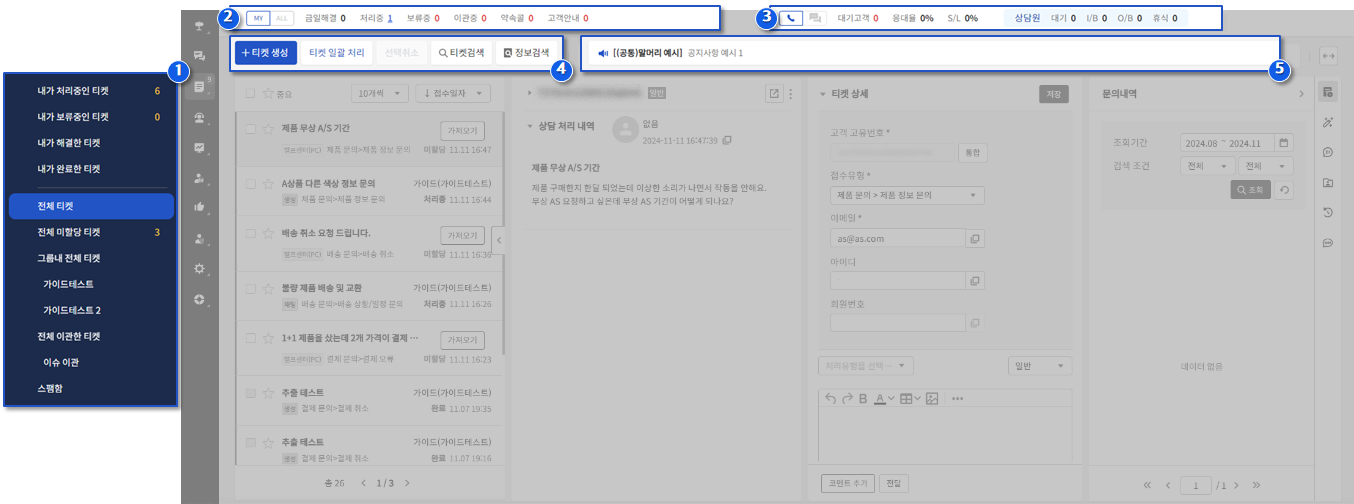
#### **① Ticket Management Menu List**
* **My Tickets in Progress** : Tickets assigned to you that are currently in progress.
* **My Tickets in Pending** : Tickets assigned to you that are on hold.
* **My Tickets Resloved** : Tickets assigned to you that you have marked as resolved.
* **My Completed Tickets**: Tickets assigned to you that have been closed by an administrator.
* **All Tickets** : All registered tickets, excluding spam.
* **All Unassigned Tickets** : Tickets that have not yet been assigned to an agent.
* **All Tickets in Group** : All tickets belonging to your agent group.
* **All Transferred Tickets** : Tickets transferred to other services or to Dooray!.
* **Spam** : Tickets marked as spam during internal resolution. (Administrators can restore or delete spam tickets.)
{% hint style="info" %}
**Ticket Status Types**
* **Unassigned** : The ticket has been created but not yet assigned to an agent.
* **Processing** : The ticket has been assigned to an agent.
* **Pending** : The ticket is on hold.
* **Transferred (In Progress)** : The ticket has been transferred to Issue Management.
* **Transfer Completed** : The issue transferred service has resolved or internally closed the ticket.
* **Dooray Transfer Completed** : The ticket has been transferred to Dooray!.
* **Dooray In Progress** : The ticket status has been changed to “In Progress” in Dooray!.
* **Dooray Resolved** : The ticket status has been changed to “Resolved” in Dooray!.
* **Resolved** : The ticket has been marked as resolved.
* **Completed** : The administrator has closed a resolved ticket.
{% endhint %}
#### **②** Mini Dashboard (Ticket Inflow Status)
* A mini dashboard that provides real-time visibility into ticket inflow, unassigned tickets, and resolution rates.
* You can view the status for your own tickets or for the currently connected service.
{% hint style="info" %}
**Ticket Management Mini Dashboard Items**
* ALL
* Created : Number of tickets received today.
* Resolved : Number of tickets resolved today.
* Processing : Number of tickets currently in progress.
* Pending : Number of tickets currently on hold.
* Unassigned : Number of tickets that have not yet been assigned to an agent.
* Resolved Rate : Percentage of tickets resolved within **24 hours** of being received.
* MY
* Resolved : Number of tickets you resolved today.
* Processing : Number of tickets you are currently handling.
* Pending : Number of tickets you have placed on hold.
* Transfer : Number of tickets you have transferred to Issue Management or Dooray!.
* Reservation Call : Number of reserved callback appointments. (The item flashes when the scheduled time arrives.)
* Customer Guide : Number of tickets for which Issue Management has requested customer notification.
{% endhint %}
#### **③ Call/Chat**
* A mini dashboard that allows you to monitor CTI-related information and chat activity in real time.
#### **④** Ticket Functions
* **Create Ticket** : Manually create a new ticket.
* **Ticket Batching** : Apply actions such as commenting, resolving, or placing on hold to multiple selected tickets in the list.
* **Deselect**: Uncheck all selected tickets in the list.
* **Search Tickets** : Search for tickets using detailed filter conditions.
* **Search Information** : Call and view APIs configured under **\[Customer Information Management] → \[Customer Information Integration]**.
#### **⑤ Internal Notice**
* You can view announcements that are fixed to the top.
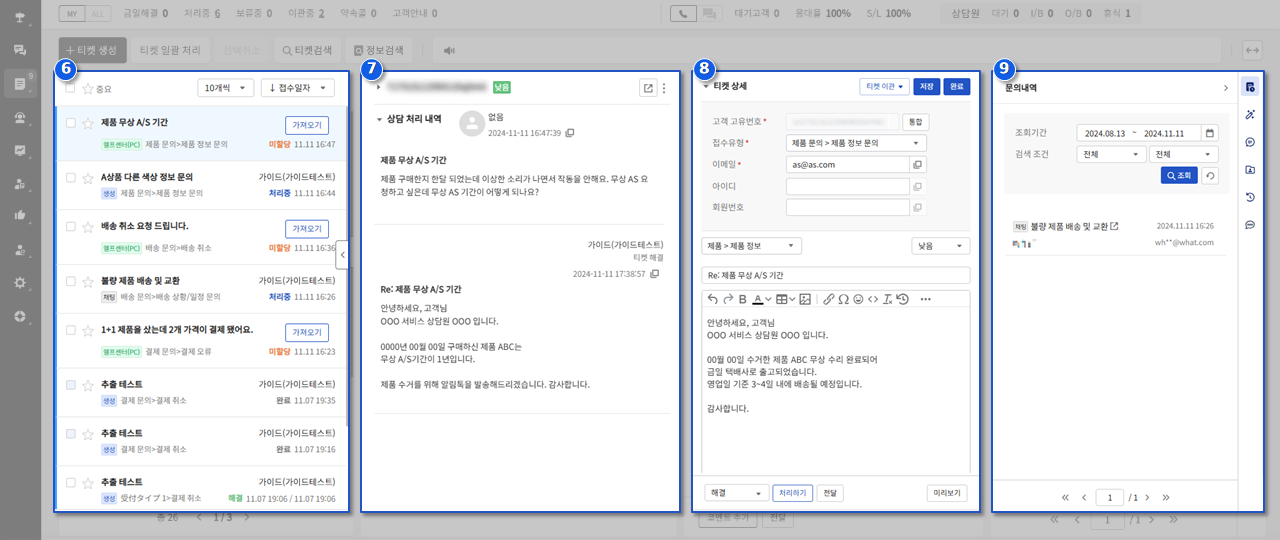
#### **⑥ Ticket List**
* The ticket list displays the title, assignee, source channel, and status of each ticket.
* Click the **star (☆) icon** next to a ticket to mark it as important.
* Important tickets can be filtered using the **☆ Important** filter at the top left of the list.
* Click the **arrow button** in the center of the section to collapse the ticket list.
#### **⑦ Ticket Information/Ticket History**
* View the information, submission details, and consultation processing history of the selected ticket.
* Ticket information includes the assigned group, assignee, creator, and status.
* The consultation processing history displays the customer’s inquiry details and the actions taken by the agent during the resolution process.
#### **⑧ Ticket Details**
* This area allows you to edit the ticket’s submission details or enter processing information.
* At the top, you can edit or add **customer information fields**, then click **Save** to update the ticket information.
* Customer information fields can be configured by inquiry type under **\[Service Management] → \[Ticket] → \[Field] → \[Field Settings]**.
* At the bottom, you can enter the ticket’s processing details and take actions such as **Resolve**, **Pending**, or **Forward**.
* Click the **Ticket Transfer** button at the top right to transfer the ticket.
#### **⑨ Additional Features Sidebar**
* Click the icons on the rightmost sidebar to open additional features in the right panel.
* Ticket History : View past inquiries based on the ticket’s customer information.
* Templete Management : View templates registered under **\[Service Management] → \[Ticket] → \[Template Management]**.
* Dooray! Comment History : View comments recorded when a ticket was transferred to Dooray!.
* Customer Information : View information retrieved via APIs configured in **\[Customer Information Management] → \[Customer Information Contact]**.
* Event : View the ticket’s creation, assignment, and modification logs.
* SMS Send : View chat history with the customer (for tickets received via chat).
* You can drag and drop the icons to change their order.
***
## **➋ Ticket Search**
* Click the **Search Tickets** button to display the expanded advanced search section.\
(The advanced search conditions are configured in **\[Service Management] → \[Ticket] → \[Field] → \[Field Management]**.)
* Click the **Set Conditions** button to select the fields you want to add as search filters, then click **Add Condition**.
* Click **Save** to apply the selected fields and view them in the detailed search area.
***
## **➌ Create Ticket**
{% hint style="info" %}
* Tickets are automatically created when customer inquiries are received through channels such as phone, email, or chat, according to the service contract.
* If an inquiry is received through an unconfigured channel or if an additional ticket needs to be created, please create a ticket manually.
* Tickets created manually are marked with the channel **“Created.”**
{% endhint %}
***
## **➍ Ticket Assignment**
{% hint style="info" %}
* Newly created tickets are initially **unassigned** with no agent assigned.
* Unassigned tickets can be assigned to an agent in the following three ways.
{% endhint %}
### **4-1. Keep**
* Click the **Keep** button on an unassigned ticket to assign it to yourself.
* If you belong to multiple agent groups, select one group when taking the ticket.
* Once the ticket is assigned, its status changes to **Progressing**.
***
### **4-2. Forward**
{% hint style="danger" %}
**Permissions and Requirements**
The **Forward Ticket** feature is available only to agents who have been granted forwarding permissions under **\[Service Management] → \[Agent]**.
{% endhint %}
* You can assign or change the assignee using the **Forward** function at the bottom of the Ticket Details section.
* When a ticket is forwarded, it is assigned to the designated agent and its status changes to **Progressing**.
***
### **4-3. Trigger**
{% hint style="info" %}
You can create conditions for tickets and configure actions to be performed when those conditions are met, such as assigning the ticket to a specific agent, or distributing it randomly or sequentially.
{% endhint %}
***
## **➎ Ticket Processing**
#### **① Customer Field**
* Enter basic customer information needed for support, such as email, ID, and name.
* Customer information fields can be configured by inquiry type under **\[Service Management] → \[Ticket] → \[Field] → \[Field Settings]**.
#### **② Editor**
* Enter the ticket processing details in the editor at the bottom of the section.
* Click the **clock icon** on the right side of the editor to load previously written content.
* If a ticket template is available, click the **Template Management** icon on the right to load the form.
#### **③ Processing Type**
* A category manually selected by the agent when processing the ticket.
* For more details on processing categories, refer to the **Category Management Guide** under Service Management.
#### **④ Priority**
* Specify the processing priority of the ticket.
* By default, tickets are set to the **Normal** level when created, and can be changed to **Low**, **High**, or **Urgent**.
* In the ticket list, tickets are visually highlighted by color based on their priority level for quick recognition of importance.
#### **⑤ Processing**
* Select the ticket status from the dropdown menu.
* **Resolved** : Marks the ticket as resolved and sends a resolution email to the customer.
* **Pending** : Sets the ticket to on-hold status when an interim response is needed (sends a hold email to the customer).
* **Add a Comment**: Adds only the written comment without changing the ticket status.
* **Resolve Internally** : Use when the inquiry is resolved internally (e.g., spam, abusive content, test, or phone resolution).
* Click the **Processing** button to apply the selected status.
* Resolution and Pending email templates can be registered under **\[Service Management] → \[Ticket] → \[Email Settings]**.
* Tickets marked as spam are moved to the **Spam** folder.
#### **⑥ Preview**
* Before resolving or pending a ticket, use **Preview** to check for restricted words and review the outgoing email to the customer.
***
## **➏ Masking**
{% hint style="info" %}
You can encrypt customers' personal information by masking it within the content.
{% endhint %}
{% hint style="danger" %}
**Permissions and Requirements**
In the contract details of the currently connected service, set the **\[Security Service]** feature to **Enabled**.
{% endhint %}
* In the Ticket Management screen, personal information can be masked in the **Processing History** section.
* This feature can be used when personal information is included in a customer’s inquiry or an agent’s response.
* Drag over the area you want to mask, then click **Masking** to replace the selected content with asterisks (**\***).
* Click the masked area again to unmask the personal information.
* Masked data is also stored in the database in its masked form.
***
## **➐ Ticket Transfer**
{% hint style="info" %}
When assistance from another agent or team member is needed to resolve a ticket, you can transfer the ticket to the **Issue Management** **service** or a **Dooray! project**.
{% endhint %}
### **7-1. Issue Escalation**
* Click **\[Transfer Ticket] → \[Issue Escalation]**, select the Issue Management service to transfer to, and proceed with the transfer.
* Once the transfer is complete, a new ticket is created in the selected Issue Management service.
***
### **7-2. Dooray! Escalation**
{% hint style="danger" %}
**Permissions and Requirements**
To use the **Dooray! Transfer** feature, enable the transfer option under **\[Service Management] → \[External Channels] → \[Dooray!]**.
{% endhint %}
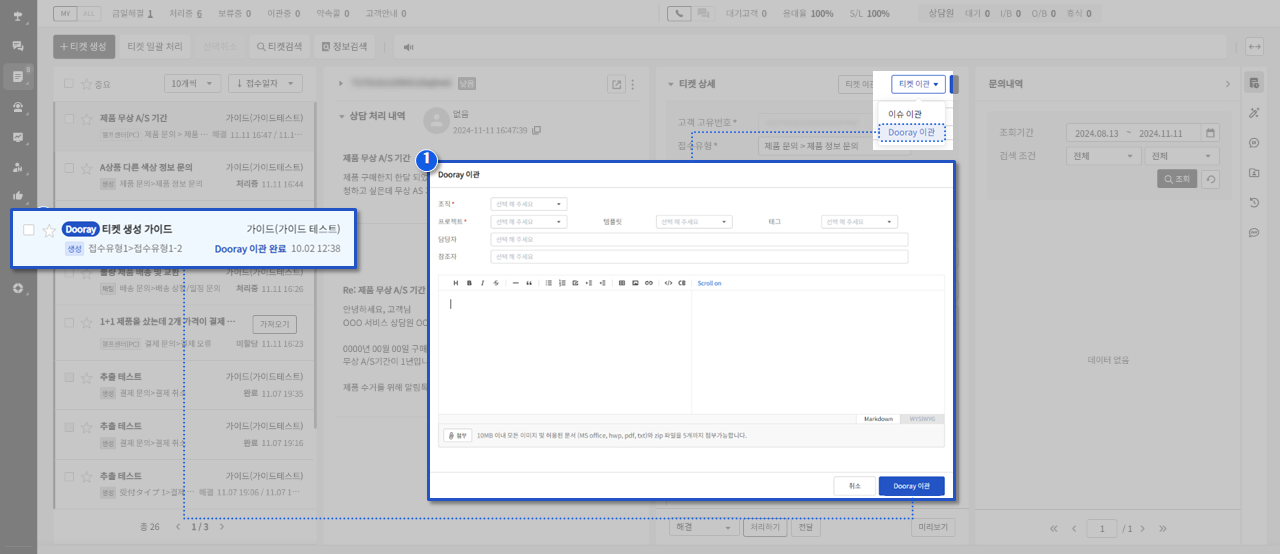
#### **① Dooray! Escalation**
* Click **\[Transfer Ticket] → \[Transfer to Dooray!]**, select the Dooray! organization and project to transfer to, enter the necessary details, and click the **Dooray! Transfer** button.
* Once the transfer is complete, a task is created in the selected organization’s project.
#### **②** Ticket Status During Dooray! Transfer
* Transferred tickets display the **Dooray! icon**, and their status changes to **Transfer Complete**.
* When the Dooray! task status changes to *In Progress*: the ticket status changes to **Proceeding**.
* When the Dooray! task status changes to *Completed*: the ticket status changes to **Complete**.
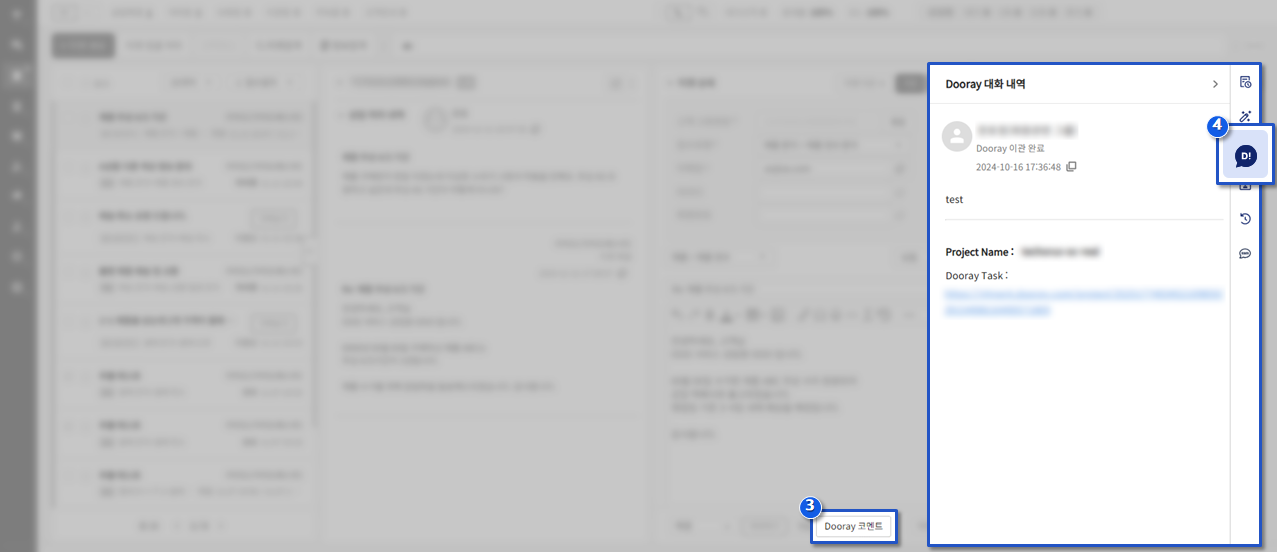
#### **③ Dooray! Comment**
* When the ticket status is **Transfer Complete** or **Proceeding**, the **Dooray Comment** button becomes available.
* Write a comment in the editor and click **Dooray Comment** to add it to the Dooray! task.
#### **④ Dooray! Comment History**
* You can view the registered tasks and comment history by clicking the **Dooray! Comment History** icon on the right panel.